App & Connectivity:
Enjox Remote
Toys:
Kite Yami BoomPro

For Android:

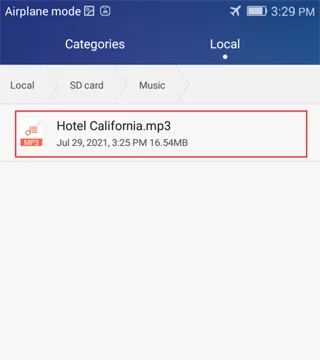
Please save your downloaded music to the "Music" folder on your phone's internal memory.
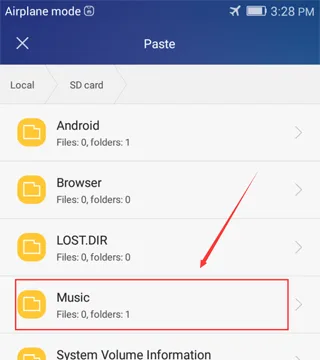
![Syncing music to an Enjox toy on Android (step 1)](/article/images/d37d58216d7d242ee12d2b373bfe5855.webp) ![Syncing music to an Enjox toy on Android (step 2)](/article/images/3ed45b66d0937d9246761bb98e724718.webp)

Music in this folder appears in the app:
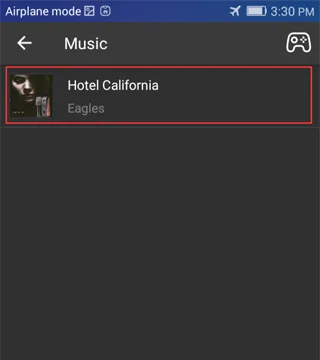
![Synced music folder shown in the Enjox Remote app on Android (step 3)](/article/images/73f55595ab971fe76a323660eedb864e.webp)

For iPhone:

  1. Log into iTunes and connect your phone.
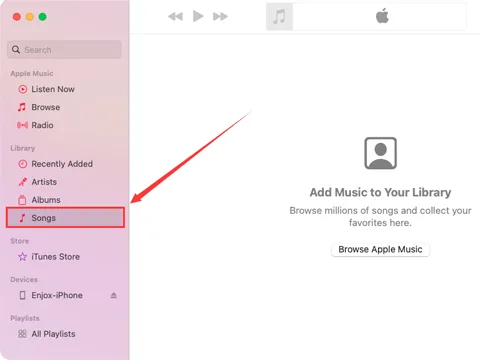
![Connecting an iPhone to iTunes to sync music (step 1)](/article/images/daa25b3168ed432c7a68fd39edb94b8a.webp)
  1. Drag all your music into the "Songs" folder.
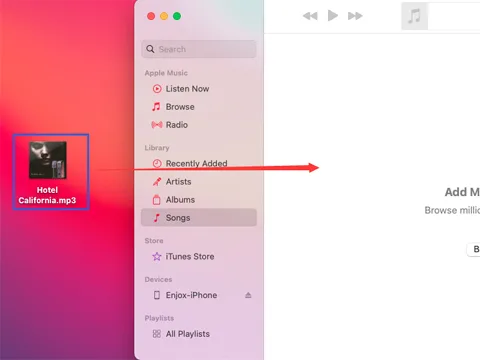
![Dragging music into the iTunes Songs folder (step 2)](/article/images/8103aea72e174712b70b43ffc4218a25.webp)
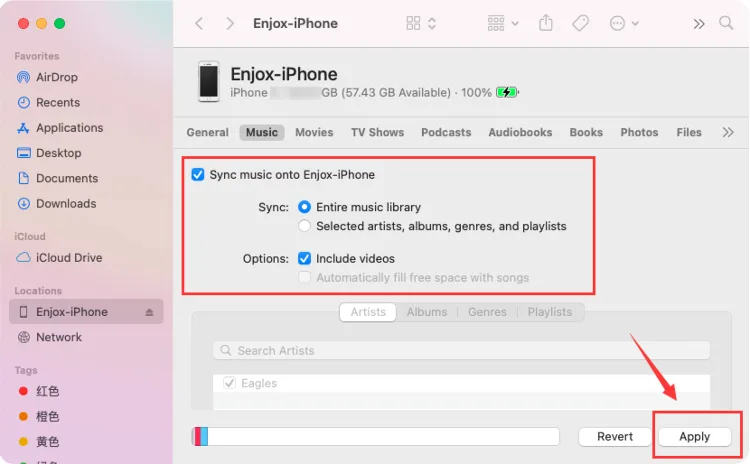
  1. Go to the "Music" section and click "Sync Music". This will sync your music with the "Music" app on your phone.
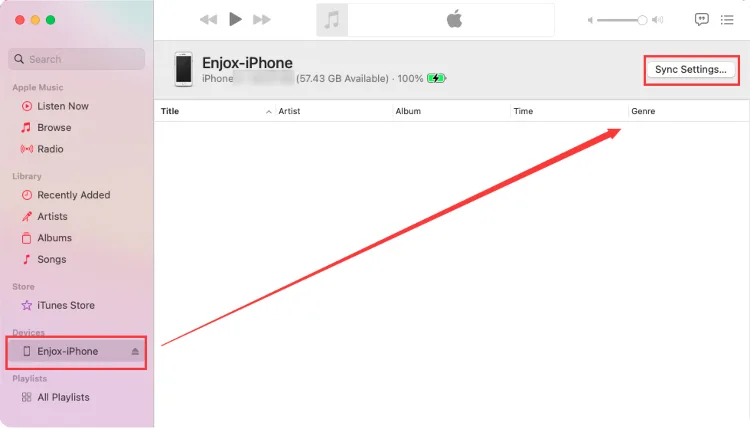
![Syncing music to an iPhone for Enjox (step 3)](/article/images/e2e67eb85e96d3f170a03df226ec5abe.webp) ![Syncing music to an iPhone for Enjox (step 4)](/article/images/dd74b96f8dd79afcd9300fa0c63054e5.webp)
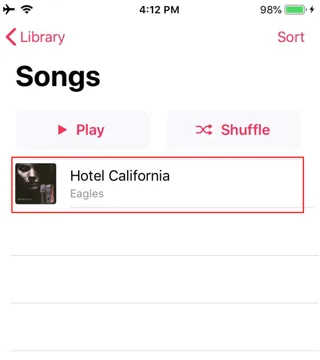
  1. Open the Music app on your phone. You will see the music that synced from your iTunes account. If there is a download icon, click it (for the songs you want to appear in our app).
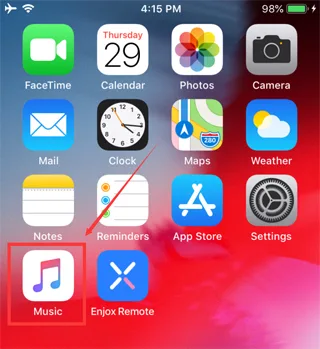
![Syncing music to an iPhone for Enjox (step 5)](/article/images/49839e37f86f10f42e40f0cb03e29330.webp) ![Syncing music to an iPhone for Enjox (step 6)](/article/images/3185419e8b532ce602f1f2d25bbe0e9a.webp)
  1. Open the Enjox Remote app. You will see the music you have downloaded.
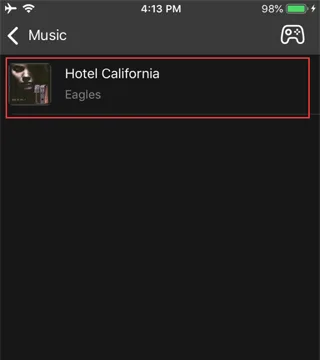
![Downloaded music shown in the Enjox Remote app on iPhone (step 7)](/article/images/215158fe048147ddd2c3460cba150439.webp)

Our site uses cookies. By continuing to use our site, you agree to the use of cookies. For more information about the use of cookies on our website, please see our Cookie Policy.